
Keyboard shortcuts
All keys at a glance, taken straight from the program so the list is always right.
Este capítulo ainda não foi traduzido para o português. Segue o texto em inglês.
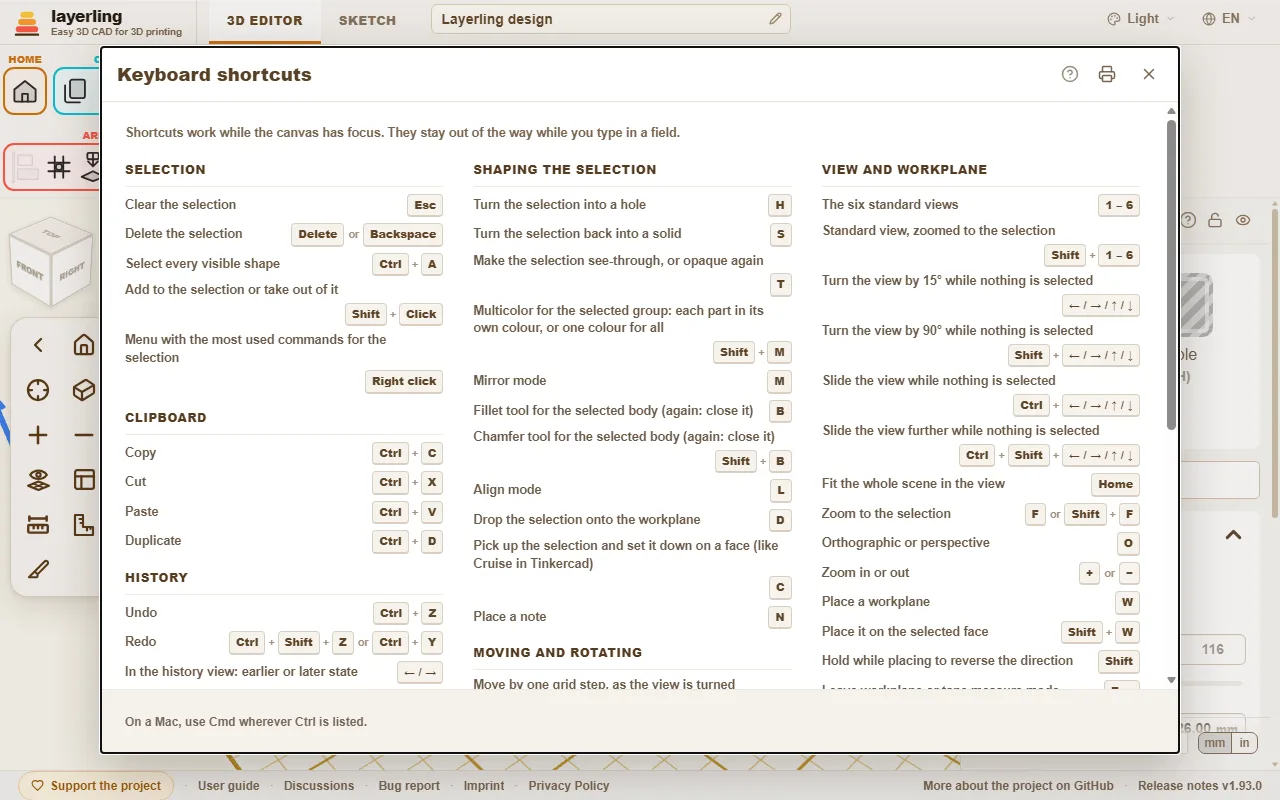
The shortcuts work as long as the workplane has the focus. While you type in a field they keep out of the way. On the Mac, Cmd applies wherever Ctrl is listed here.
In the editor, “Atalhos de teclado” in the “Ajuda” area opens the same list as a window. The printer button in the window (“Imprimir ou salvar como PDF”) prints the list on its own, black on white, the whole list on one side of an A4 or Letter sheet in three columns, to keep at hand as a quick reference; the print dialog of the browser also offers to save it as a PDF.
Command search
Can't find a tool? Press Ctrl+K or click the magnifying glass in the “Ajuda” area, then type what you are looking for: a tool ("fillet", "mirror"), a shape ("cylinder") or a command ("export", "undo"). Move with the arrow keys and press Enter, or click the entry.
- The search understands the English and the German word alike and ignores capital letters and umlauts: "aushoehlen" finds “Vazar”.
- Every entry shows the keys that do the same and the area of the toolbar it lives in, so you learn where it is.
- Entries that are greyed out cannot run right now, mostly because nothing is selected. They stay in the list so the search still tells you where the tool is.
The guide you are reading has a search box too, at the top of every page: type a word or two and it lists the sections that contain all of them, with the matching words marked. Click one, or press Enter for the first, to jump straight there.
- A shape's name adds that shape to the workplane, just like clicking it in the shapes menu.
- With an empty field the search lists the commands you used last at the top.
- The name of a body in your design finds that body and selects it, which helps in a design with many parts. Bodies only appear once you type.
- It works in sketch mode as well, with the sketch tools.
Interactive Help
Cannot find where to read about a button or a field? Let the program take you there. Click the question mark in the “Ajuda” area, or press Shift+F1. The pointer turns into a question mark, and whatever lies under it is outlined.
- Click a button, a field, a switch, a handle, a group of the ribbon or the title bar of a window. It does not do what it normally does. A small window opens instead, with the name of the element, a short summary of the part of this guide that is about it, up to two more places that mention it, and “Abrir no guia”.
- The help is about the element you pointed at, not about the whole window around it. An element without a name of its own uses the nearest one around it; inside a window it falls back on that window's question mark.
- “Abrir no guia” opens the guide at that section in a new tab. There the section is outlined in colour, from its heading to its end, so you see where it starts and stops.
- If the guide says nothing about the element, the window says so and offers “Pesquisar no guia”.
- Esc, or the question mark again, leaves the mode. On a touch screen there is no hover: a tap on an element opens the window straight away.
The window moves by its title bar like the other windows. The program finds the section by the name of the element - the label on a button, the name of a field - because this guide writes every button as it is called in the program. It looks it up in the same search as the box at the top of each guide page, in the language you are using, and runs entirely in your browser.
Seleção
| Esc | Limpar a seleção |
| Delete ou Backspace | Excluir a seleção |
| Ctrl+A | Selecionar todas as formas visíveis |
| Shift+Clique | Adicionar à seleção ou tirar dela |
| Clique direito | Menu com os comandos mais usados para a seleção |
Área de transferência
| Ctrl+C | Copiar |
| Ctrl+X | Recortar |
| Ctrl+V | Colar |
| Ctrl+D | Duplicar |
Histórico
| Ctrl+Z | Desfazer |
| Ctrl+Shift+Z ou Ctrl+Y | Refazer |
| ← / → ou Wheel | Na vista do histórico: estado anterior ou posterior |
| PgUp / PgDn | Na visualização do histórico: dez estados antes ou depois |
| Home / End | Na visualização do histórico: o estado mais antigo ou o atual |
| Esc | Na vista do histórico: voltar ao estado atual |
Arquivo
| Ctrl+I | Abrir ou fechar a janela de importação |
| Ctrl+E | Abrir ou fechar a janela de exportação |
| Ctrl+S | Salvar o projeto no arquivo dele |
Agrupamento e visibilidade
| Ctrl+G | Grupo de união |
| Ctrl+B | Criar conjunto (manter as peças juntas sem fundir) |
| Ctrl+Shift+G | Desagrupar |
| E | Editar o grupo selecionado |
| Ctrl+L | Bloquear ou desbloquear a seleção |
| Ctrl+H | Ocultar a seleção |
| Ctrl+Shift+H | Mostrar tudo o que está oculto |
| Ctrl+Shift+O | Mostrar ou ocultar a lista de objetos |
Dando forma à seleção
| H | Transformar a seleção em orifício |
| S | Transformar a seleção de volta em sólido |
| T | Deixar a seleção transparente, ou opaca de novo |
| Shift+M | Multicor para o grupo de união selecionado: cada peça na sua cor, ou uma cor para todas |
| M | Modo espelhar |
| B | Ferramenta de arredondamento para o sólido selecionado (de novo: fecha) |
| Shift+B | Ferramenta de chanfro para o sólido selecionado (de novo: fecha) |
| L | Modo alinhar |
| D | Baixar a seleção até o plano de trabalho |
| C | Pegar a seleção e assentá-la numa face (como o Cruise no Tinkercad) |
| N | Colocar uma anotação |
Mover e girar
| ← / → / ↑ / ↓ | Mover um passo da grade, conforme a vista está girada |
| Shift+← / → / ↑ / ↓ | Mover cinco passos da grade |
| Ctrl+↑ / ↓ | Subir ou descer a seleção |
| R | Girar 45° |
| Shift+R | Girar 22,5° |
| Shift | Segure ao arrastar: mover só em X ou Y |
| Alt+Arraste | Arrastar uma cópia, o original fica parado |
| Alt | Pressione após iniciar o arraste: pausar o encaixe em outras formas |
| Alt+Enter | Ao digitar um tamanho ao lado da forma: crescer a partir do meio em vez da borda oposta |
Vista e plano de trabalho
| 1 – 6 | As seis vistas padrão |
| Shift+1 – 6 | Vista padrão, com zoom na seleção |
| 7 / 8 / 9 / 0 | Go to the view saved under that key |
| Shift+7 / 8 / 9 / 0 | Save the view - turn, pan and zoom - for this design |
| ← / → / ↑ / ↓ | Girar a vista 15° quando nada está selecionado |
| Shift+← / → / ↑ / ↓ | Girar a vista 90° quando nada está selecionado |
| Ctrl+← / → / ↑ / ↓ | Deslocar a vista quando nada está selecionado |
| Ctrl+Shift+← / → / ↑ / ↓ | Deslocar a vista mais longe quando nada está selecionado |
| Home | Enquadrar a cena inteira |
| F ou Shift+F | Zoom na seleção |
| O | Ortográfica ou perspectiva |
| + ou − | Aproximar ou afastar |
| W | Colocar um plano de trabalho |
| Shift+W | Colocá-lo na face selecionada |
| Shift | Segure ao colocar para inverter a direção |
| Esc | Sair do modo plano de trabalho ou trena |
Ajuda
| Ctrl+K | Abrir a pesquisa de comandos |
| Shift+F1 | Ligar ou desligar a Ajuda interativa |
Modo de esboço
| Ctrl+K | Abrir a pesquisa de comandos |
| Shift+F1 | Ligar ou desligar a Ajuda interativa |
| Esc | Largar a ferramenta (voltar a Selecionar), depois limpar a seleção |
| Delete ou Backspace | Excluir o elemento selecionado |
| Ctrl+C | Copiar |
| Ctrl+X | Recortar |
| Ctrl+V | Colar |
| Ctrl+D | Duplicar |
| Ctrl+Z | Desfazer |
| Ctrl+Shift+Z ou Ctrl+Y | Refazer |
| R | Girar um esboço fechado em 45° |
| L | Bloquear ou desbloquear o contorno selecionado ou a imagem de referência |
| Home | Enquadrar o esboço inteiro |
| F ou Shift+F | Zoom na seleção do esboço |
| + ou − | Aproximar ou afastar o esboço |
| Alt+Enter | No campo de comprimento de uma linha: crescer para os dois lados |
| ← / → / ↑ / ↓ ou Shift+← / → / ↑ / ↓ | Mover os pontos, linhas ou imagem selecionados um passo da grade (Shift: um passo maior) |
| ← / → / ↑ / ↓ ou Shift+← / → / ↑ / ↓ | Mover uma alça de curva clicada um passo da grade (Shift: um passo maior) |
| 1 ou 2 ou 3 ou 4 | Escolher uma ferramenta de desenho: 1 Linha, 2 Curva de Bézier, 3 Curva suave, 4 Adicionar ou remover pontos (quando nenhuma linha está sendo desenhada) |
| Shift | Ao desenhar: prender a linha nova em passos de 15° |
| Shift | Ao arrastar: manter o movimento em um eixo |
| 0-9 ou < ou Tab ou Enter | Ao desenhar: digite o comprimento, "<" ou Tab para o ângulo, Enter define o ponto |
Chanfro e arredondamento
| Enter | Aplicar a prévia |
| Esc | Descartar a prévia |